
When running a video game on any platform, one important consideration is FPS, or frames per second. FPS plays a huge role in how fluid the game looks, from character movements to how the camera turns. Thanks to a recent update, Steam players can now get an idea of what the FPS might be like when they try to play a game – before they have downloaded it to their gaming setup or their handheld Steam Deck.
According to the Steam News announcement, the data comes from players who opt in to provide it for the platform, and thousands of games already have that information available. More games will be added to this list as further data comes in. The announcement also said many Steam Deck players have already shared their data, so plenty of games and gameplay styles are represented.
The update initially rolled out to the Steam Deck because each one has the same hardware configuration, making data from these devices easier to break down and understand. Starting November 11, though, the information became available to anyone using Steam, whether on the handheld device, the Steam desktop app, or a web browser.
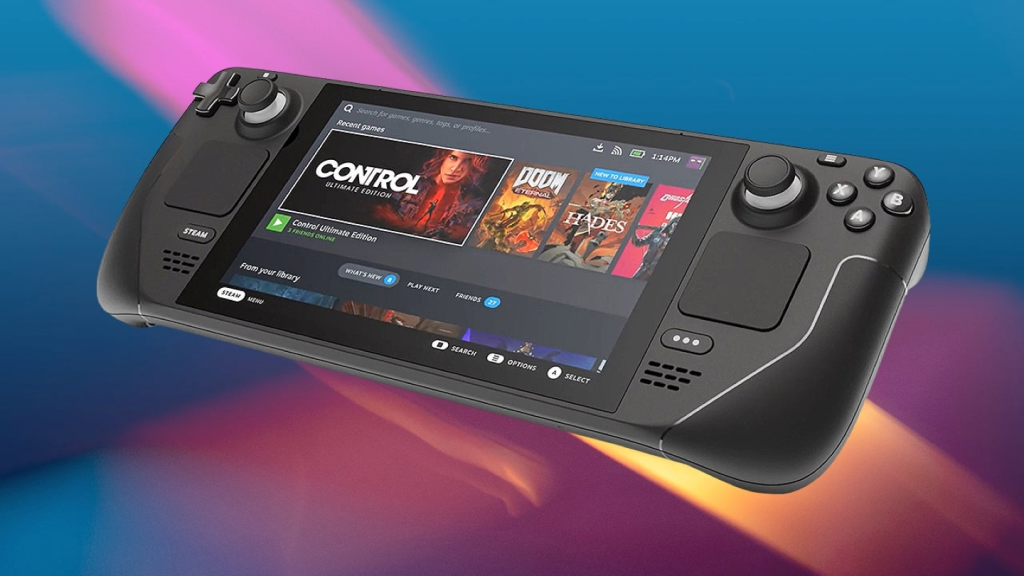
Steam Now Shows How Games Actually Perform, Thanks to Data From Other Players
To find the FPS information, users still need to rely on the Steam Deck – at least, the Steam Deck compatibility button. Whether or not the game is actually supported by the device, all gamers need to do is click on the “Learn More” button under the Steam Deck Compatibility tab. For example, anyone interested in playing Dressmaker – which is rated as “Playable” on the Steam Deck – can click on the button and learn that “Players on the Steam Deck OLED averaged 63 FPS while playing this title.” The pop-up also informs potential players when the data was last updated, which in this case is November 14, 2026.
For anyone hoping to make their statistical contribution to the cause, there are two ways to opt-in. Opting in is still limited to players using a Steam Deck or Steam Client Beta, which lets you test features before they roll out to the public.
One way to contribute data is to click “Yes” when the prompt pops up when you access the Steam Library or a game’s page. Or users can go into their Steam Account Settings, navigate to Data & Browsing, and click Anonymous Game Framerate data.
The post Steam Just Added a Feature That Lets You Check a Game’s FPS Before Buying It. Here’s How It Works. appeared first on VICE.