If you’re gearing up to host out-of-town guests, throw a big New Year’s Eve bash or are just trying to pick a movie with friends, these features on your phone or tablet can help.
Share the Wi-Fi
Want an easy way to share your home network password with visiting family that doesn’t involve typing? Your phone can display a QR code they can scan with their camera apps to log on.
On many Android phones, open Settings, tap Network and then Internet. Select Internet and then tap your network name. At the top of the next screen, tap Share and verify your identity to get the QR code.
On an iPhone, open the Passwords app, select Wi-Fi, choose your network and then tap Show QR Code. For guests with Apple Accounts and Apple devices — and who are already in your iOS Contacts app — a box with permission to share the network password should pop up on your phone when the guests select your network in their Wi-Fi settings.
Schedule Your To-Do List
Your phone comes with an app for managing your to-do list. It’s called Reminders on Apple systems, Reminder on Samsung’s software or Tasks (which also saves reminders from Google Keep) on Google-based gear.
When you create a task, like picking up the in-laws at the airport, add a date and time for it to get it on your calendar — and get reminder notifications. (Google also recently added a “deadline” option for final project due dates.)
You can also command Apple’s Siri, Samsung’s Bixby or Google’s Gemini assistant to set up reminders.
In Apple’s iOS 26.2 update, released earlier this month, you can go beyond a basic notification and set an alarm. To do so, create a new reminder and tap the red encircled “i” next to it. On the next screen, in the Date & Time area, add the day and time you need. Next, tap the Urgent button to add an alarm that will sound, even if you have the Do Not Disturb mode on.
Set a Timer
When you’re cooking, voice commands to the assistant also work for setting a timer, but on an iPhone, you can quietly jump right to the timer in two moves.
First, swipe down from the top right corner to open the Control Center. Next, press down on the Timer icon. An adjustable Timer screen opens to let you set the amount of time you need.
Android users can jump to the timer by swiping down to open the Quick Settings panel, tapping the clock icon and then tapping the Timer tab. (If you don’t see these icons on your iOS or Android device, you can edit the Control Center or Quick Settings screen to include them.)
Split the Screen
Having two apps open side by side is quite useful on foldable phone models when you’re planning events and excursions, but the split-screen view has long been available on many standard Android phones, including Samsung’s more recent Galaxy gear. Google recently updated the feature in Android 16 on its Pixel phones to allow one app to take up to 90 percent of the screen if you need one window bigger than the other.
Steps for going into split view vary by device, but one way is to go to the Recents screen and swipe to the first app you want to use. Choose Split Screen from the drop-down menu and then swipe to the other app you want to display. With both apps open, use the divider bar between them to adjust the window size.
Apple’s iPhones have yet to add a split-screen option, but the company’s tablets running iPadOS 26 can display apps in multiple windows.
Make Group Decisions
Group chats in Apple Messages, Google Messages, Samsung Messages (or whatever app you use) help keep everyone in the loop on holiday plans. Third-party polling apps or tools in popular messaging apps like Facebook Messenger, Signal and WhatsApp even let group members vote on activities.
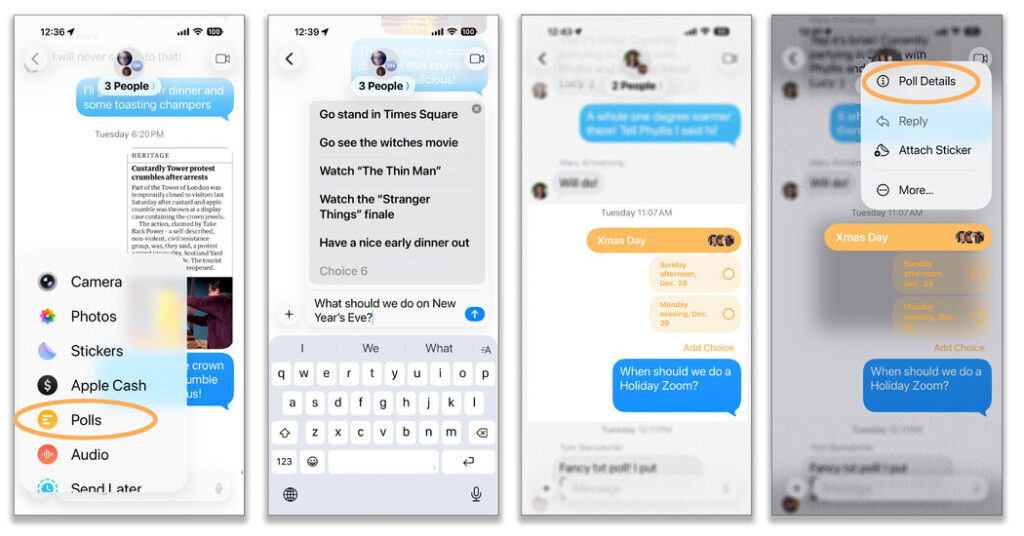
If everyone in the chat is using Apple hardware — as well as iOS 26 and the iMessage service — you can create a poll right in the Messages app. To set one up, open Messages and select a group conversation. Tap the + button, choose Polls and enter the options for participants to consider. Hit the Send button to share the poll with the group, who can then tap to vote.
And if the Messages discussion among iPhone users involves which movie to see or which football game to watch — and web links are flying around the chat — highlight a quotation before you share the link from the Safari browser to have that quote appear within the message to reinforce your point. Which is, of course, the correct one.
J.D. Biersdorfer has been writing about consumer technology for The Times since 1998. She also creates the weekly interactive literary quiz for the Book Review and occasionally contributes reviews.
The post Save Holiday Time With These Handy Smartphone Features appeared first on New York Times.