You can do a lot on your smartphone or tablet without actually opening an app.
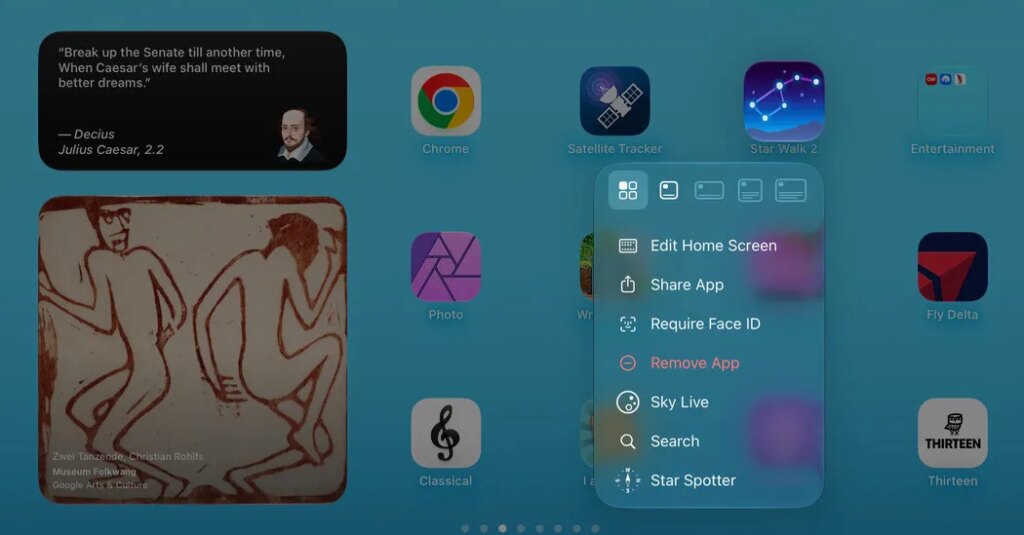
Just by briefly pressing your finger (instead of tapping) on an app’s icon, you can often find a hidden menu. This menu may offer a shortcut to an action like snapping a selfie, starting a message or opening the e-book you’ve been reading.
And that menu might offer an option to add a widget — a small window that displays a useful bit of information from an app. Widgets can show live-traffic maps, news headlines and more, right on your home or lock screen.
These handy timesavers are not new, but they do get updated. If you’ve missed recent enhancements in the upgrade rush (or have never explored these menus or widgets), here’s a tour.
Hidden Menus
Sometimes called “long press” or “quick action” menus, these little pop-ups aren’t universal. But many apps, both native and third-party, include them. Just hold your finger down on an app icon long enough to see if a menu appears. If it does, select the action you want to use.
On Android devices, most of Google’s stock apps have long-press menus, including Google Calendar (for adding events), Gemini (for search), Gmail (for composing messages) and Google Keep (for starting a note).
The Samsung Food and Samsung Health apps are among those that have long-press menus for tasks like starting a shopping list, checking the day’s exercise log and more.
Apple refers to these as “quick action” menus. You can find them by pressing icons on the home screen, in the App Library and in the iOS Control Center. As with Google and Samsung, many of Apple’s native apps have the hidden menus, including its mail, phone, notes, messages and camera apps. (Google’s apps for iOS usually have the menus, too.)
You might even find hidden menus inside certain apps. For example, Google announced new long-press menu options in September for reacting to texts in Android Messages. Apple’s Photos and Freeform are among those that offer quick-action menus when you’re using them and press the thumbnail of a picture or project.
Widgets
Phone widgets have been at work since the early days of Android. Apple added them to the iOS 14 home screen in 2020 after earlier introducing widgets on the Today View screen. The company recently rolled out larger widget sizes in time for the iPhone Duo.
The phone’s native apps often have widgets for displaying favorite photos, world clocks, to-do lists, notes and other items. Many third-party apps offer their own widgets. For example, you can make a widget with the Metropolitan Transportation Authority’s “M.T.A.” app to display train arrival times at your selected subway station.
To add a widget on most Android phones (including Google Pixel and Samsung Galaxy models), press your finger on an empty area of the home screen and tap Widgets from the menu that appears. Here, you can browse and add widgets from apps that offer them. Alternatively, some apps include their own Widget option on the long-press menu.
Tapping the widget opens the full app. To resize or remove a widget, press it and either drag it to a new size or tap Remove to delete it.
You can also add widgets to the lock screen on recent Android phones. On a Samsung Galaxy phone, press an empty area of the lock screen and choose “Add Widgets” to get started.
On a Google Pixel, you need to allow widgets on the lock screen. Press the lock screen, tap Customize Lock Screen, go to More Lock Screen Settings, and enable “Widgets on the Lock Screen.” Swipe to your left, press an empty area of the screen, and choose Add Widget. After you’ve added widgets, find them by swiping to the left again on the locked phone.
On an iPhone (or iPad), press an empty area of the home screen until the icons wiggle, tap the paintbrush icon in the top-left corner, and select Add Widget to open the widget catalog. (You can add widgets with these same steps on the device’s Today View screen.)
Some iOS apps now let you convert their standard icons into live widgets right on your home screen. Press an app’s icon, and if you see a menu showing different widget sizes, select one. To turn the widget back into an icon, press the widget and choose the icon option on the left.
To add widgets to the lock screen, press your finger on it, select Customize, and tap Add Widgets. Make your selections.
If you really like widgets, some phones support piling multiple widgets in a stack for swiping through. Many Samsung Galaxy models and Apple’s iOS devices offer stacks in the widget settings.
You may rarely have to open some apps again.
The post How to Use Your Apps With Fewer Taps appeared first on New York Times.