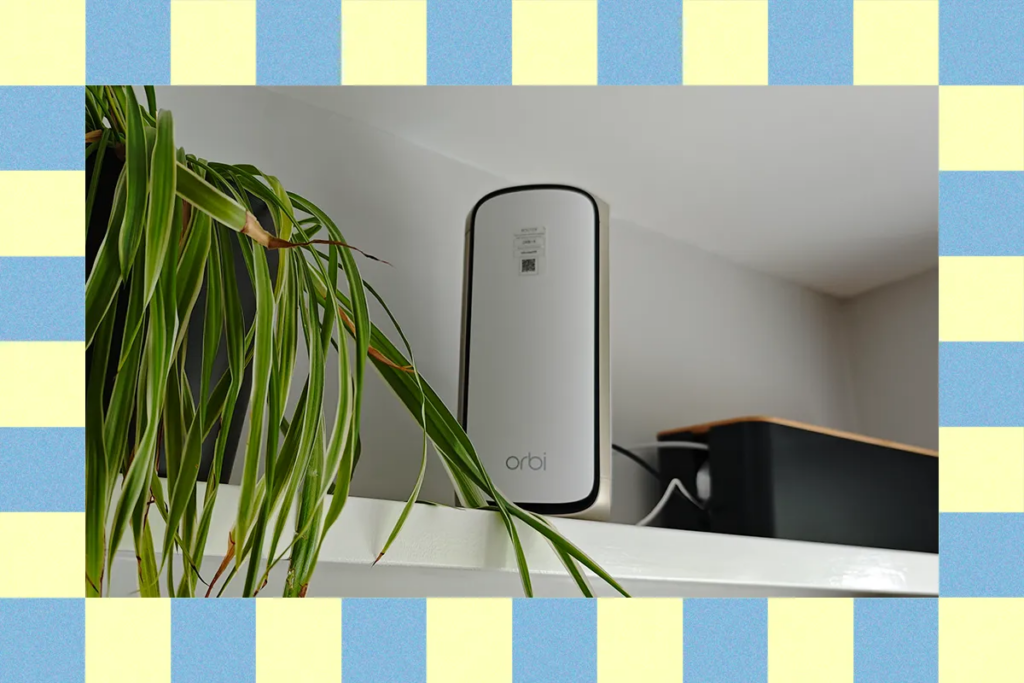
You are here because your internet connection is flaky. Maybe your Wi-Fi keeps going down or disconnecting specific devices, seemingly at random. Maybe your network is painfully slow, or you can’t get online at certain times of day. Whatever your issue, I have some simple suggested fixes and tips that should get you back online and keep you there.
If speed is your problem, we have ideas on how to make your Wi-Fi faster. We also have guides to the Best Mesh Routers, Best Wi-Fi Routers, and Best Wi-Fi Extenders, if you feel it’s time to upgrade your hardware. If you’re willing to dig a little deeper, let’s dive into some potential problems and solutions.
Table of ContentsLargeChevron
- What to Do When Your Internet Is Out
- Ethernet Cables
- Router Placement Matters
- Run a Speed Test
- Firmware Upgrade
- Check Your Router Settings
- Problem Devices
- Bandwidth Hog
- Check Your SSID
- IP Conflicts
- Double NAT
- Prioritization
- Binding Devices
- Smartphone Settings to Check
- Computer or Laptop Settings to Check
- Windows Network Troubleshooter
- Mac Wireless Diagnostics
- Check the Antennas
- Upgrading Hardware
- Finding a Wi-Fi Fix
What to Do When Your Internet Is Out
You probably tried rebooting your router and devices already, but there’s a solid reason the first suggestion is always to turn it off and on again. The first question to answer is: Is your device, Wi-Fi network, or internet service out? If other gadgets are still connected, you’ll want to power cycle your device; if nothing can connect, power cycle your router and modem.
Make sure you do it properly, because it’s easy and quick to do, and it will often fix issues.
- Turn off your router and modem.
- Unplug them completely.
- Wait for at least 30 seconds. You can turn the power switch on while the device is unplugged (where possible) to ensure residual power is drained.
- Plug them back in and turn them on.
It will take your modem and router a while to restart and reconnect. They usually have LED indicators, but it shouldn’t take longer than a few minutes. Be patient. If you’re having a problem connecting a specific device, like a TV or PC, try the same process to power cycle it properly.
If your devices are all back on and you can connect to your Wi-Fi network, but still don’t have internet access, log in to your router or mesh system. Open up your router app and check the status of your internet connection. If there’s no internet access, you’re probably going to have to call your internet service provider (ISP). But it could also be worth checking your cables.
Ethernet Cables
If you recently moved your router, switched cables, or suspect the Ethernet cable between your router and modem could have been damaged, it’s worth taking a closer look. Here’s what to do:
- Unplug the Ethernet cable from both ends and plug it back in again to ensure it’s not just loose.
- Inspect the cable for signs of damage.
- Try a different cable.
Faulty, low-rated, or poor-quality cables can cause all sorts of issues. They can limit your speed, cause intermittent outages, or cut your internet connection. It’s a good idea to have a spare, and you should buy the correct category for your connection. Here’s everything you need to know about Ethernet.
Folks with a 1-Gbps or slower connection can snag a Cat 5e or Cat 6 Ethernet cable. For a faster connection, consider a Cat 6a or 7 (capable of 10 Gbps) cable, but Cat 7a or 8 (capable of 40 Gbps) cables are overkill for home use. I recommend going with a recognized brand, but you don’t have to spend much. I’ve had good experiences with Cable Matters, Monoprice, and even Amazon Basics.
If you’re using a mesh system, running Ethernet cables between the main router and the nodes for a wired backhaul will likely dramatically improve the speed and stability of the Wi-Fi network throughout your home. You can also consider running cables to problem spots. If you just have issues with a particular TV in a back bedroom, for example, an Ethernet cable could be an easy and affordable fix.
Router Placement Matters
Your router pumps out a Wi-Fi signal in all directions, so the best place for it is in the middle of your home. Your modem is likely on an outer wall, so you’ll need to run a longer Ethernet cable. You also want your router to be up high, on top of a bookcase or cabinet, or wall-mounted near the ceiling. Leave it out in the open; don’t be tempted to close it away in a cabinet or hide it behind a TV, as this will reduce the signal strength.
If your router has adjustable antennas, try adjusting them. You’ll be surprised how big a difference this can make. With tower routers or mesh units, the antennas are on the inside, but you can still try moving them and changing the angle to see if it improves the signal strength where you want it. A common mistake people make with mesh systems is to place nodes too far away from the main router. Think of a mesh as the backbone running through the center of your home.
Lots of things will impact signal strength if your router is too close to them. Avoid metal or concrete, fish tanks, microwaves, baby monitors, and cordless phones. It’s best not to have any other wireless devices (Bluetooth, Wi-Fi, or anything else) too close. This could be trickier in an apartment where your neighbor’s routers and devices can cause interference.
Routers are generally good at picking the best bands and channels to avoid interference, but if you think that’s your problem, you could consider splitting bands or changing channels in your router settings. You can use a Wi-Fi analyzing app (I like Netspot) to see how busy the channels in different bands are around your home.
Run a Speed Test
Sometimes sluggish performance on your network may be caused by your device. It’s worth checking the internet speed. You can simply type “speed test” into your web browser search and run one. Some routers and mesh systems also offer built-in speed tests, so you can check that your ISP is delivering the speed you are paying for.
If the internet speed appears fine, but your browser is sluggish, you may need to flush your browser cache, disable problematic plug-ins, or scan for malware.
Firmware Upgrade
It’s generally a good idea to update the firmware on your devices when updates are available, and I recommend enabling them to update automatically where possible. This is important for routers and even more so for mesh systems. Manufacturers will regularly release new firmware updates that improve compatibility and stability, and they can have a tremendous impact on your Wi-Fi performance. It’s a quick and easy thing to do in your router’s app.
Check Your Router Settings
If you’ve previously tinkered with your router’s settings, you may have changed something that is causing a problem. Have a quick look and see if there’s anything obvious you can try changing back, but don’t go tweaking settings you don’t understand. If you suspect this might be your issue, but can’t remember what to change, it could be worth doing a factory reset on your router or mesh.
Problem Devices
There are many potential issues with networking gear and the wide range of different devices you might have in your home that are trying to connect to Wi-Fi. Let’s take a look at some potential fixes if you’re struggling with a particular device.
Bandwidth Hog
If you’re having intermittent issues with the network slowing down. It’s worth doing a quick tally and considering which devices could be hogging your bandwidth. You can check on the network impact of different devices in your home by simply turning them off for a while, one at a time, and testing network stability and speed. Think about limiting the devices that connect to your router and reducing their bandwidth requirements where you can.
Security cameras recording 4K video to the cloud can easily slow your network to a crawl. But you can lessen the impact by turning off recording when you’re home, filtering out some events, or switching to a lower resolution.
Check Your SSID
If one device refuses to connect, double-check the network name or SSID (service set identifier) that you’re connecting to and make sure you have the right password. Here’s how to find and share your Wi-Fi password. It’s best to keep your SSID simple and avoid spaces or special characters.
If you have a device that has never been able to connect or perhaps can’t connect after you changed your router, check that the Wi-Fi standard or security settings are supported. You may have to split bands, change the security mode, or create a separate IoT network for the device to join. Many smart home devices can only connect to the 2.4-GHz band.
Multi-link operation (MLO) is a feature in Wi-Fi 7 that enables devices to connect on more than one band simultaneously, but it can cause connectivity issues for some devices, so consider disabling MLO to see if that’s your culprit. If you’re keen to use it for the devices that do support it, you could create a separate (IoT or guest) network for older gadgets.
IP Conflicts
If two or more devices on the same network are assigned the same IP address, you are going to have problems. It’s best to avoid assigning static IP addresses manually and instead use DHCP (dynamic host configuration protocol) to generate them dynamically. If you need a static IP address for some reason, try to configure your DHCP to use a range that doesn’t include them. A reboot should get your IP address reassigned and fix any problems.
Double NAT
Sometimes people buy a new router or mesh and simply plug it into the router that their ISP provided. Sometimes you have to do this because your ISP’s router has the modem built in. Double network address translation (NAT) is caused by both routers creating their own private network, and it can cause problems for online gaming and VPN services, and can prevent devices from being able to see each other or interact. For example, you can’t stream to a specific speaker or print via Wi-Fi on your printer.
Ideally, you can remove the ISP router, but if it contains the modem, consider putting it into bridge mode. You can also turn off the Wi-Fi on your ISP’s router and make sure that your router is in access point (AP) mode.
Prioritization
Most routers and mesh systems allow you to prioritize certain devices or even activities like gaming or video calls. Sometimes called quality of service (QoS), these settings can be found in your router’s mobile app or web interface. If you’re having issues with work calls because your kids are hogging the bandwidth for online gaming, prioritizing your work device or activities could help. You can also consider limiting the bandwidth available for specific devices on your network.
Binding Devices
If you have a mesh system and there’s a stationary device, like a PC or TV, with stability problems, it could be because it’s in between a node and your main router, and the system is having trouble assigning it. I’ve had some success by binding devices to the main router or node, whichever you figure has the stronger signal. Unfortunately, this isn’t an option with every mesh system, but with an Asus mesh, for example, you can select a connected device from the list and tap Bind to AP. Your alternative is to move the node or the device that’s having issues.
Smartphone Settings to Check
If your smartphone connection fails or is glitchy, it’s worth trying a simple toggle off and on again first. Swipe down to open your quick settings or control center and simply toggle Wi-Fi off, wait a beat, and toggle it back on again. You can also try toggling Airplane mode on and off again.
Folks with a Pixel should go to Settings, Network and Internet, Internet, and tap the little wrench at the top right to reset their connection.
Still having smartphone-related problems? It could be worth resetting your network settings. Just be aware that this option will wipe your saved Wi-Fi networks and passwords, linked Bluetooth devices, and VPN configurations. It may also return your mobile network settings to their defaults. Here’s how to do it:
- On a Google Pixel: Settings, System, Reset options, Reset Bluetooth and Wi-Fi
- On a Samsung phone: Settings, General management, Reset, Reset network settings
- On an iPhone: Settings, General, Transfer or Reset iPhone, Reset, Reset Network Settings
Computer or Laptop Settings to Check
If your PC or laptop is having trouble connecting or staying connected to your Wi-Fi, click on the Wi-Fi icon and turn it off, or click on it again in the pop-up window to turn it on. You can also go to Settings, Network & Internet, and toggle Wi-Fi off on Windows, or System Settings, then click Wi-Fi in the sidebar to toggle it off on a Mac.
Windows Network Troubleshooter
You can try a couple of things with a Windows machine, depending on your version. To start with, try forgetting the network and then rejoining. Go to Settings, Network & internet, Wi-Fi, select Manage known networks, pick yours, and click Forget. Now rejoin (you’ll need the password).
Still having issues? Try the troubleshooter:
- Windows 11: Right-click on the Wi-Fi icon in the taskbar and select Diagnose network problems.
- Windows 10: Click Start, Settings, Network & Internet, select Status from the left-hand menu, and scroll down to choose Network troubleshooter.
There are a few more options on Microsoft’s Wi-Fi troubleshooting page.
Mac Wireless Diagnostics
You might be able to get some useful information by using Wireless Diagnostics on your Mac. Here’s how:
- Close all apps.
- Press and hold the Option key and click on the Wi-Fi icon in the menu bar.
- Choose Open Wireless Diagnostics and follow the instructions.
- When it’s complete, you can click on the i next to each entry in the Summary pane to get more information.
There are a few more options on Apple’s Wi-Fi troubleshooting page.
Another possibility to check is that an individual program on your computer is uploading or downloading a lot of data. With Windows, you can right-click on the taskbar, open Task Manager, and glance at the Network column. On a Mac, try Applications, Utilities, pick Activity Monitor, and look at the Network tab.
Check the Antennas
PCs often have antennas that screw into the back of the Wi-Fi card. These can be angled and adjusted, but it’s common for folks to find that they have come loose or even fallen off, so have a quick check. Higher-end Wi-Fi cards come with magnetic antennas with cables that screw into place, so you can move them around and find the best position for a signal.
Upgrading Hardware
If you’re still having issues, consider upgrading the hardware. It’s relatively cheap and easy to update the Wi-Fi card in your PC or laptop.
Finding a Wi-Fi Fix
Sadly, this is only the tip of the iceberg. Some Wi-Fi issues can be horribly tough to track down and alleviate. If you haven’t managed to find a fix for your problem, it’s time to dig in and research. Be as specific as possible and scour forums or post questions. Check in with router and other device manufacturers, talk to your ISP, or post your issue in the comments here, and I’ll do my best to point you in the right direction.
Power up with unlimited access to WIRED. Get best-in-class reporting and exclusive subscriber content that’s too important to ignore. Subscribe Today.
The post How to Fix Your Wi-Fi Problems (2026) appeared first on Wired.